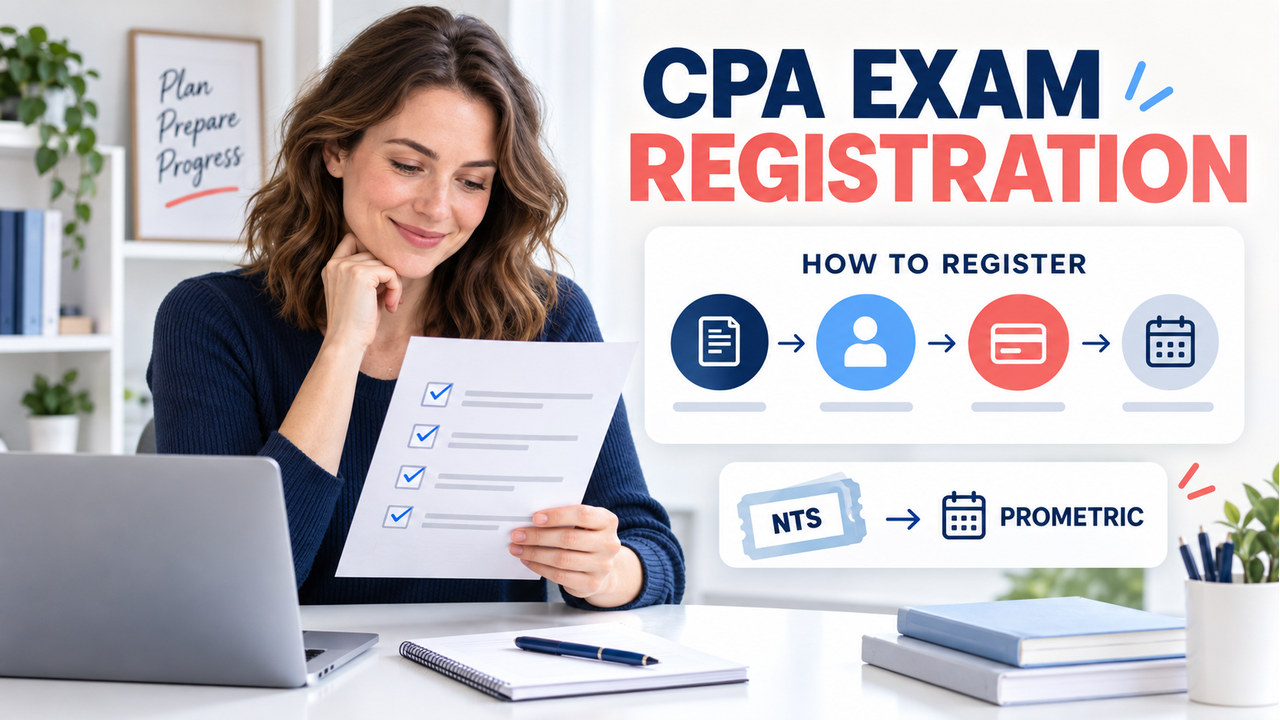

Quick answer: if you are asking how to register for CPA exam, follow the order set by your jurisdiction: choose the board or designated service, confirm eligibility, submit the required records, register for one section, receive and verify the Notice to Schedule (NTS), and then book through Prometric. Registration is not the same as opening an account or searching for a seat.
This guide turns each handoff into a record: route, evidence, owner, status, and next action. Fees, documents, NTS windows, international rules, and seat availability change, so use the official pages and access date as a recheck point before paying or confirming.
How to Register for CPA Exam: The Six-Step Path
Start with the jurisdiction where you intend to pursue licensure or practice, not merely the state where you live. Read its current application page and keep evidence of every submission. After eligibility, choose the section that fits your preparation calendar. The NTS is the scheduling handoff; Prometric controls the appointment, while the board or NASBA route controls application and eligibility.
NASBA’s current FAQ says you cannot schedule until you receive an NTS. It also says appointments must be made at least five days ahead and recommends about 45 days when possible. Treat that as current guidance, not a promise of a seat or a universal exception rule.
Choose the Correct Registration Route
NASBA’s CPA Exam hub lists jurisdictions that use the CPA Portal and links to jurisdiction-specific instructions. Others are directed to a board or designated service. The screen and document route may differ, but the evidence logic is the same: know the owner, save the proof, and do not move ahead because a button says “submit.”
| Route | Where you begin | Save after each action | Stop before |
|---|---|---|---|
| CPA Portal jurisdiction | NASBA hub → CPA Portal → account match | Matching email, jurisdiction candidate ID, status, receipt, NTS | Using a national ID or assuming account creation equals eligibility |
| Board-directed jurisdiction | Selected Board of Accountancy or named service | Current instructions, transcript delivery, forms, receipt, decision | Sending records through a route the board does not accept |
| International testing | Eligible jurisdiction first, then current international instructions | NTS, location rules, passport or required ID, fee confirmation | Booking from a domestic availability view without completing the extra step |
Step 1: Pick the Jurisdiction That Owns Your Application
Use the board’s current requirements to decide whether the jurisdiction fits your education, residency, and intended licensing path. You may be able to apply outside your home state, but that is not a shortcut around the jurisdiction’s rules. Later licensure can also require different evidence.
Write the owner at the top of your notes exactly as the official page states. If you cannot name the owner, you are still at Step 1. A commercial checklist can surface questions, but it cannot select the board for you.
Step 2: Confirm Eligibility and Prepare the Documents
Read the selected route before ordering records. The packet can involve official transcripts, degree or conferral evidence, identity details, an approved international evaluation, or a jurisdiction-specific form. “Official” describes the delivery method the board accepts; an applicant-uploaded scan may not satisfy it.
- Record every institution and the channel that will send its transcript.
- Use a consistent legal name across the application and the ID you expect to show at the test center.
- Save the exact page that described the requirement, the submission receipt, and the date checked.
- Separate exam eligibility evidence from experience or ethics evidence used later for licensure.
An international evaluation is not a universal eligibility decision. NASBA explains that it converts education for a particular jurisdiction; that jurisdiction still decides whether the result meets its requirements.
Step 3: Create or Match the Correct Account
If your jurisdiction uses the CPA Portal, activate the account with the application email, then match it to the existing record. NASBA distinguishes the jurisdiction candidate ID from the national candidate ID and says matching information must agree with the application. If you are sent to a board-owned system, follow that system instead.
After submitting, record status and missing items. A confirmation email proves receipt, not completion of education review. If the portal shows a mismatch, stop and correct it with the application owner before buying a section.
Step 4: Wait for Eligibility, Then Register for One Section
NASBA’s general process separates an eligibility or education review from the later exam-section application. Once the responsible process declares you eligible, select the section you can realistically prepare for inside its NTS window. The current Exam has three Core sections and one Discipline choice; use the AICPA blueprint to understand what your selected section tests, while the board’s instructions control the registration route.
Before paying, write: “I am registering for [section] because I can prepare and sit before the NTS expires.” Fees and refunds vary. More sections may change cost and calendar, but choose only what your readiness and current jurisdiction terms support.
Step 5: Read, Download, and Verify the NTS
The NTS is your notice that you may begin scheduling the specified exam section. Save it locally and, if practical, print it. Check the candidate name, section, section identification number, issue date, expiration date, and any location or administration restriction. If any field is wrong, contact the board or agency that received your application; Prometric cannot correct an eligibility record.
Do not replace the printed expiration date with a common “six-month” assumption. NTS validity varies. You must sit before the NTS expires, so put an earlier reminder on your calendar while seats are still visible.
How Prometric Scheduling Fits the Registration Path
When the NTS is valid, use the official Prometric CPA page to locate and schedule an appointment. Search a preferred center and date, compare the proposed appointment with the NTS expiration, then complete the booking and save the confirmation number. A locate result is not the same as a confirmed appointment. Center hours and seats are set independently, so waiting can reduce your choice.
For domestic testing, keep the NTS and matching primary identification ready. For international testing, complete the separate current registration and fee steps first; a location can appear in search without being available to your NTS. If you reschedule, read the current deadline and fee rule. The new appointment still has to fit the original NTS window.

Use a Final Check Before You Book
Use this five-point check immediately before confirming the appointment:
- Name: the application, NTS, and primary ID use matching information.
- Section: the appointment matches the section identification on the NTS.
- NTS window: the exam date is before the printed expiration date.
- Logistics: travel, work, accommodations, and preparation time fit the date.
- Confirmation: the number, center, date, time, and change deadline are saved in two places.
If one item fails, stop at the responsible owner. Do not ask Prometric to solve a name or eligibility error, and do not ask a board to find a seat that the appointment system controls.

Two Examples: Different Status, Different Next Action
Morgan: the transcript receipt is saved, but eligibility is pending. Morgan’s record says “Owner—board; Status—pending; Next Action—check missing documents or wait.” Morgan should not pay or search for an appointment.
Taylor: the NTS is active, the section and name match, and expiration is near. Taylor’s record says “Owner—Prometric; Status—ready; Next Action—compare seats and save confirmation.” Taylor can act, but cancelling does not reset the NTS expiration.
The record is useful because it changes the question from “Why can’t I book?” to “Which owner still owes me which evidence?”
Registration Click Path Self-Check
Common Registration Mistakes
- Confusing account creation with eligibility: an activated login is not a board decision.
- Scheduling from a payment receipt: wait for the NTS and verify the section it covers.
- Using the wrong candidate ID: follow the portal’s jurisdiction-ID instructions during matching.
- Assuming every board uses the same form: jurisdiction routes and document delivery rules differ.
- Ignoring the NTS date: a reminder and a saved copy are safer than a remembered validity period.
- Treating search availability as a booking: keep the confirmation number, not only a seat screenshot.
How to Register for the CPA Exam FAQ
Can I schedule before I receive the NTS?
No. NASBA’s current FAQ says you cannot schedule until the NTS is received. If eligibility or section registration is still pending, resolve that handoff first.
Do I apply through the state where I live?
Not automatically. You may apply through a jurisdiction when its rules allow it, and some have residency conditions. Start with where you intend to be licensed or practice.
Where do I book the appointment?
After the NTS is valid, use Prometric’s CPA scheduling path. You generally do not have to sit in the application jurisdiction, but testing elsewhere does not bypass its requirements.
How long is the NTS valid?
It varies by jurisdiction. Read the expiration date on your own NTS and plan to sit before it. Do not substitute a common duration from an older guide or forum post.
What to Do Today
Create the five-field Registration Click Path record now: route, evidence, owner, status, and next action. Complete the first missing field and save the official page and check date. For broader study planning, see the CPA Exam Study Guide, then return to the page that owns your current step.
Sources and Update Note
Verified September 14, 2026. Registration routes, fees, documents, NTS windows, international procedures, seat availability, and change deadlines can change. Recheck the selected jurisdiction, NASBA, and Prometric before submitting payment or confirming an appointment.
- NASBA CPA Exam hub
- NASBA CPA Portal
- NASBA CPA Exam FAQ
- NASBA CPA Exam Candidate Guide
- Prometric CPA scheduling
- AICPA CPA Exam blueprint page